Adding Secure2fa users
The principle of the second factor is to link the TOTP code to an Active Directory account. Before connecting to MS Remote Desktop, the user must preauthenticate the second factor by entering their username and the TOTP code they received earlier.
To add a user to the Secire2fa database, it is necessary to generate his TOTP code in the admin panel and save it to the user in a local application, for example, on a phone (it is recommended to use Google Authenticator or a similar application)
Creating a user in the Secure2fa database
Open the admin panel in the browser by going to https://your_domain_name/admin
In the Users -> User Management section, enter the name of the user account from Active Directory (you are interested in the samaccountname attribute), for example user001. Next, click the Add/ Show QR button

The QR code TOTP is displayed, which must be added to the user's local application.
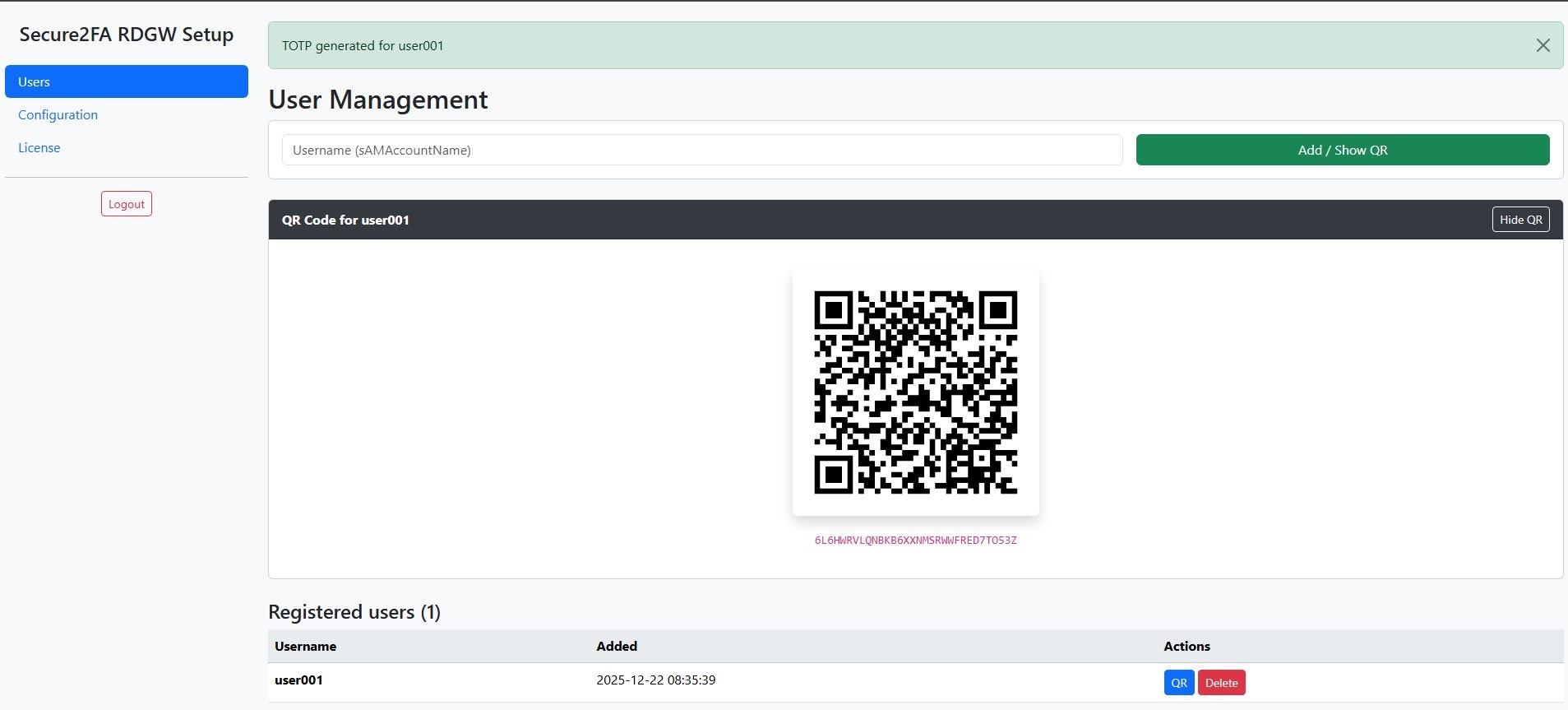
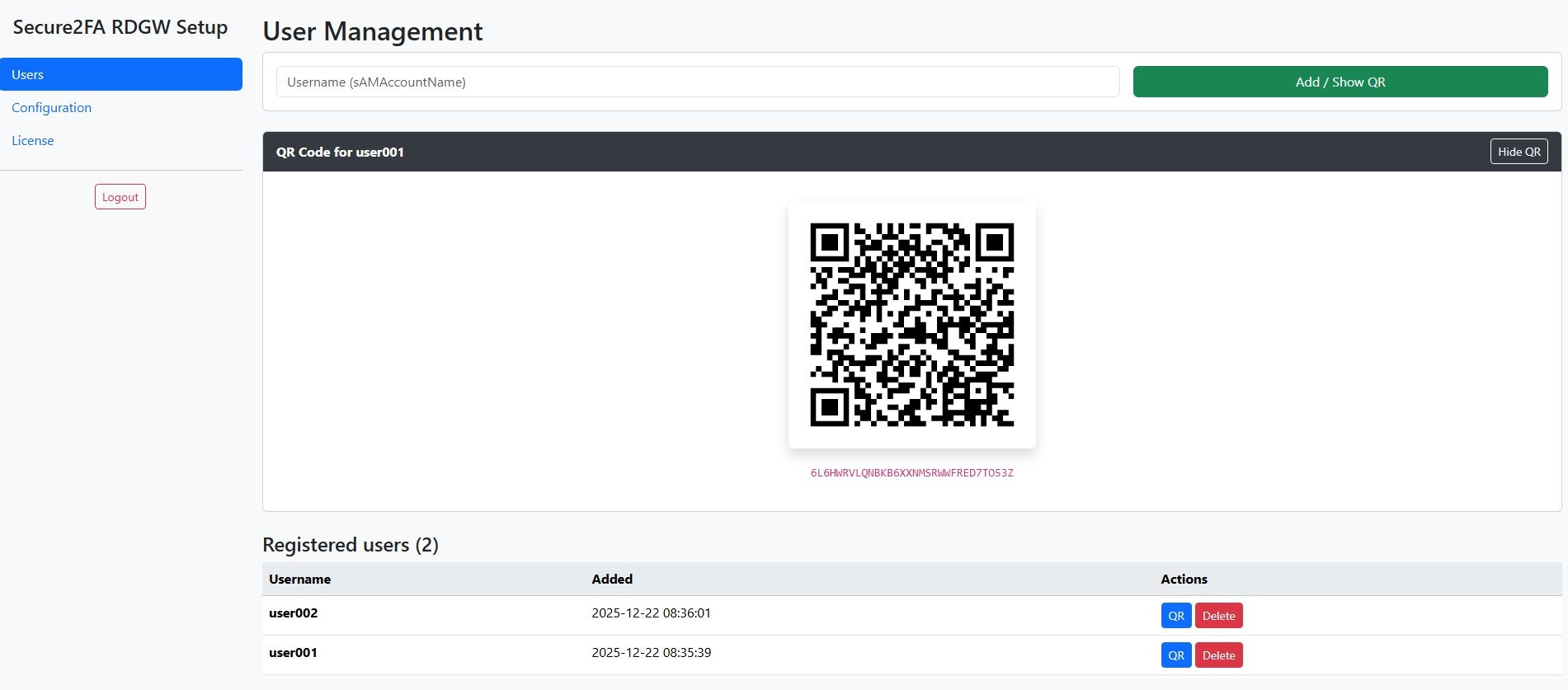
To display the QR code of a previously created user, click the QR button in the list of users. Similarly, you can delete previously created users by clicking the Delete button.
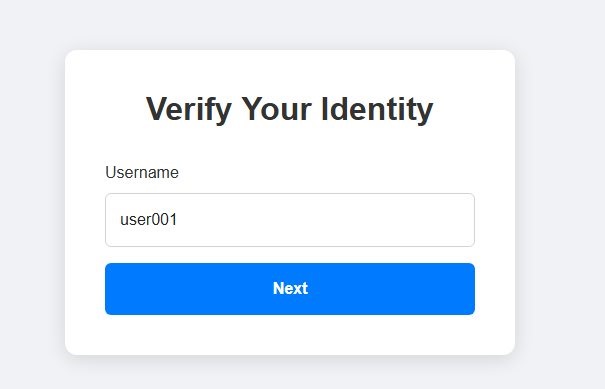
After successfully adding TOTP to the user's local application, they need to open your Secure2fa server address in the browser before attempting to connect to the MS Remote Gateway . https://your_domain_name /, enter his account name from Active Directory and the TOTP code from the application.
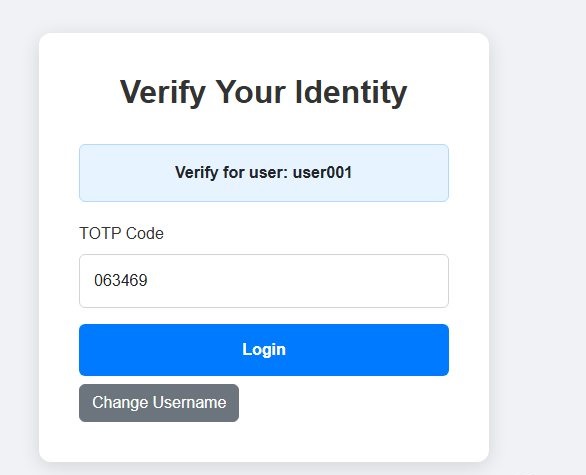
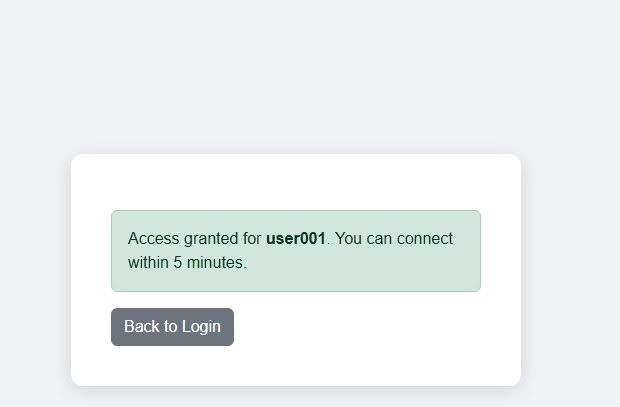
After successfully entering the TOTP, the user will receive a message that he has been granted access within 5 minutes. Next, he will need to connect to the MS Remote Gateway in the usual way.