Configuring the Secure2fa
After successfully deploying the project described in the Install Secure2fa on Ubuntu or Install Secure2fa on Debian sections, you need to configure the Secure2fa.
To do this, you need to go to the admin panel in the browser by going to https://your_domain_name/admin (The domain name was specified by you earlier when deploying the project in docker-compose.yml, the LETSENCRYPT_DOMAIN variable). Important: the admin panel for reducing information security risks is only available from private networks such as 10.0.0.0/8, 192.168.0.0/16 and 172.16.0.0/12)
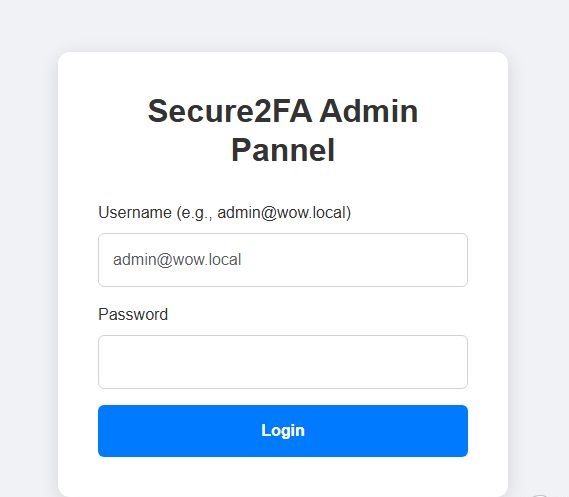
You will need to log in to the admin panel using the login and password specified when you deployed the project (specified in docker-compose.yml in the ADMIN_USERNAME and ADMIN_PASSWORD variables)

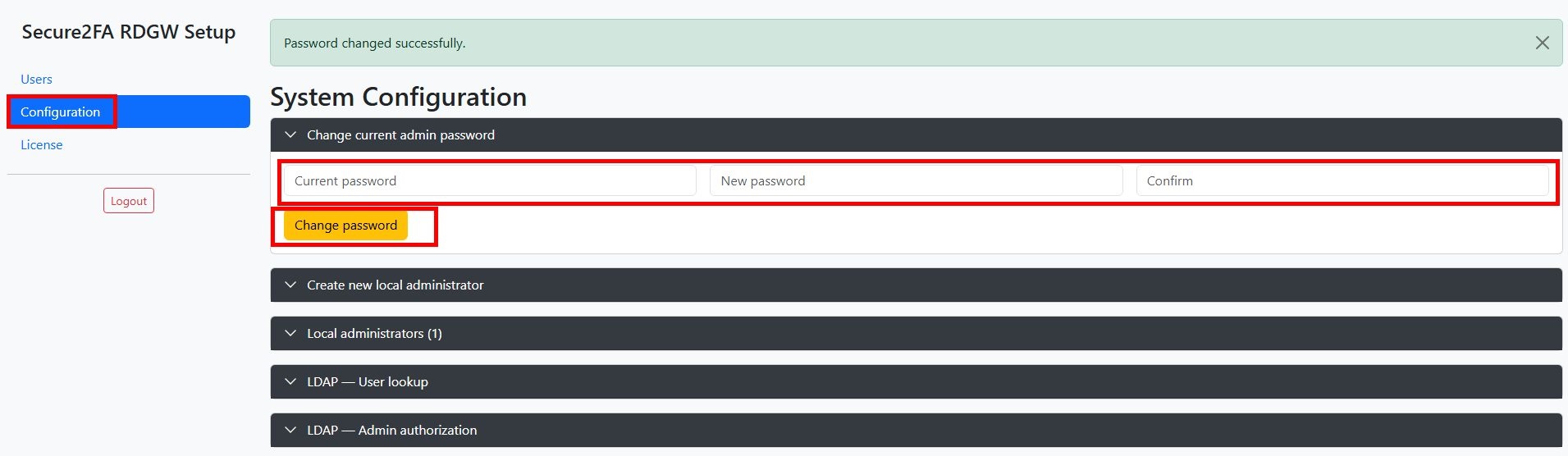
After successful login, you will need to change the password for your local account by going to Configuration -> Change current admin password
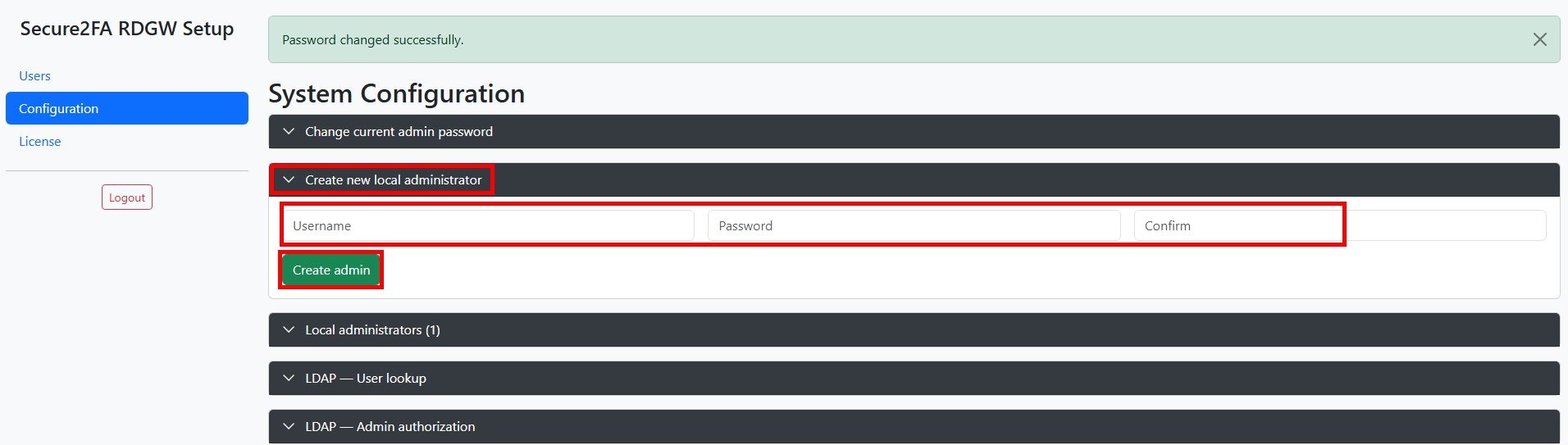
The Configuration -> Create new local administrator section allows you to create additional local administrators for your secure2fa project
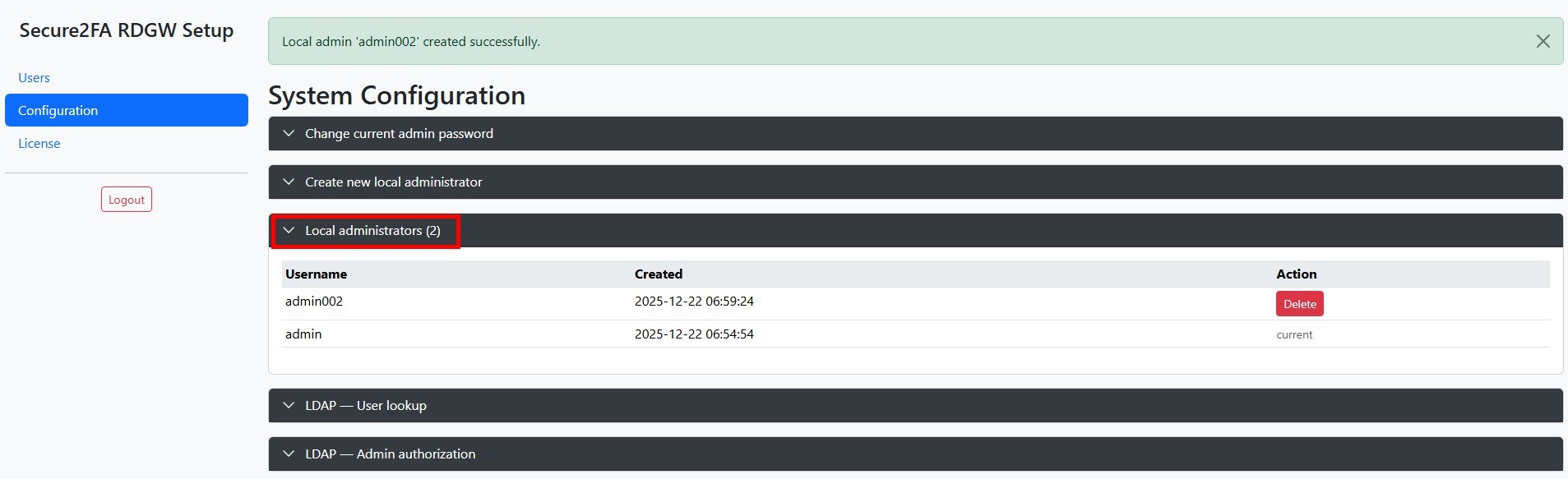
The Configuration -> Local administrators section displays a list of all the local administrators for your project
Next, you need to configure the LDAP connector with Active Directory to create a second authentication factor for MS Remote Gateway users. To do this, open the Configuration -> LDAP - User lookup section, and fill in the following fields:
- Server, in ldap format://the ip address of your Active Directory domain controller
- Bind user (DN) - in the format username@youromain.local . This account must be created in your Active Directory with the rights of an ordinary domain user (necessary disable the password expiration policy for this account, i.e. make the password expire-free. This account is required to search for users. Active Directory in order to add them to the secure2fa database for the subsequent creation of the second factor)
- Password - account password
- Base DN - in the format CN=Users,DC=youromain,DC=local . This parameter is necessary to limit the search for Active Directory accounts, for example, if you
only need to protect accounts from a specific OU.
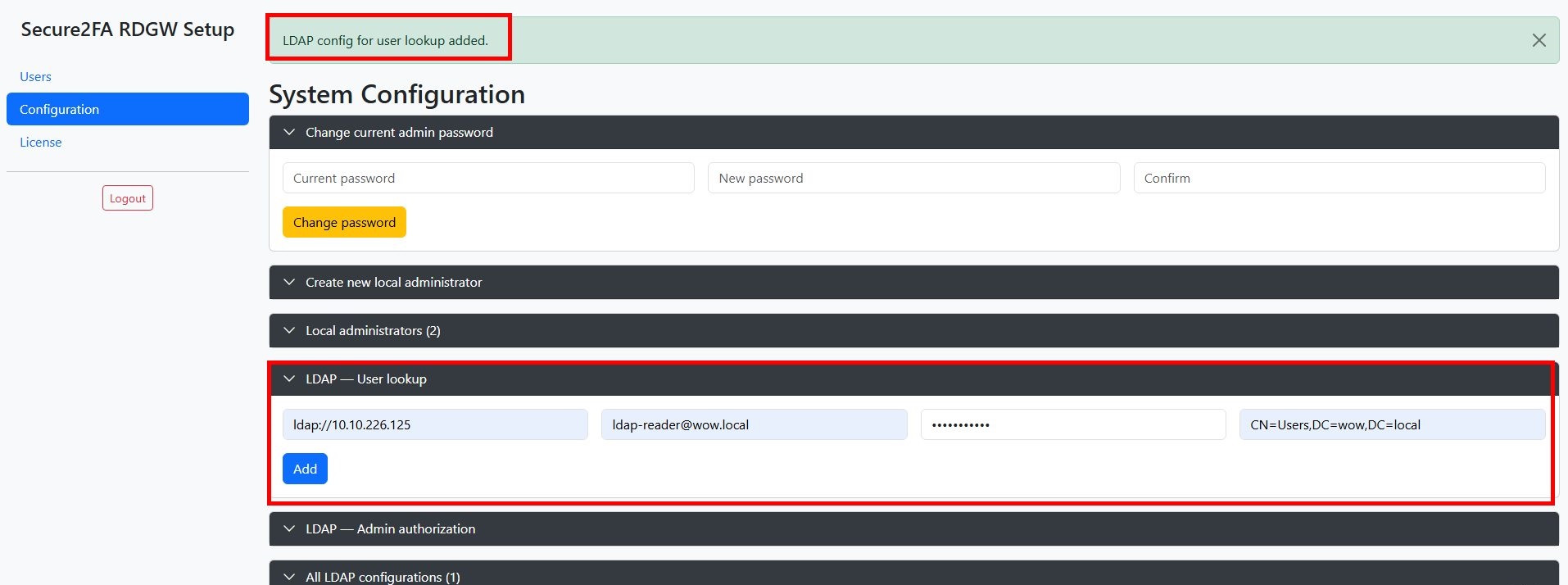
After successfully adding the Active Directory configuration, you can view the configurations you created in Configuration -> All LDAP configurations
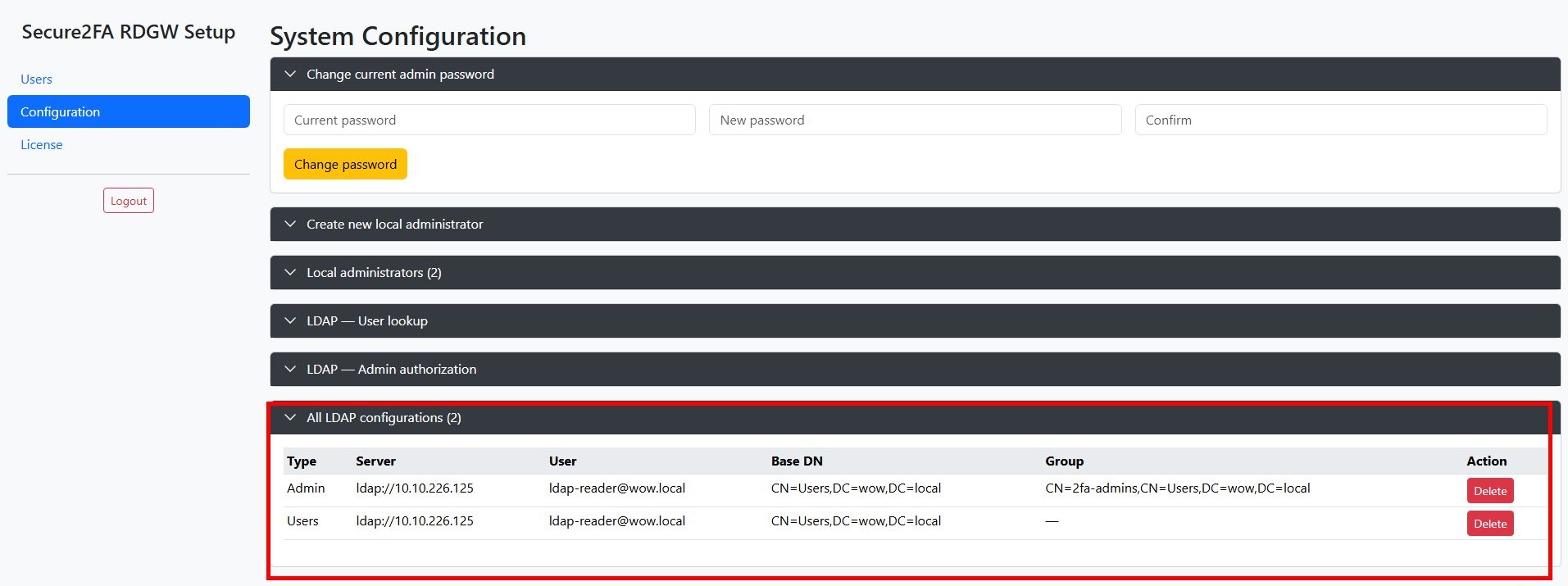
If you use more than 1 Active Directory domain, you can also add additional configuration.

(Optional) Configuring authorization in the admin panel for Active Directory users.
You can also set up authorization for admin panel administrators on Active Directory accounts. To do this, open Configuration -> LDAP - Admin authorization, and fill in the following fields:
- Server, in ldap format://the ip address of your Active Directory domain controller
- Bind user (DN) - in the format username@youromain.local . This account must be created in your Active Directory with the rights of an ordinary domain user (necessary disable the password expiration policy for this account, i.e. make the password expire-free.
- Password - account password
- Base DN - in the format CN=Users,DC=youromain,DC=local .
- Admin group, in the CN=2fa format-admins,CN=Users,DC=youromain,DC=local . Admin panel administrators must have an appropriate group in Active Directory
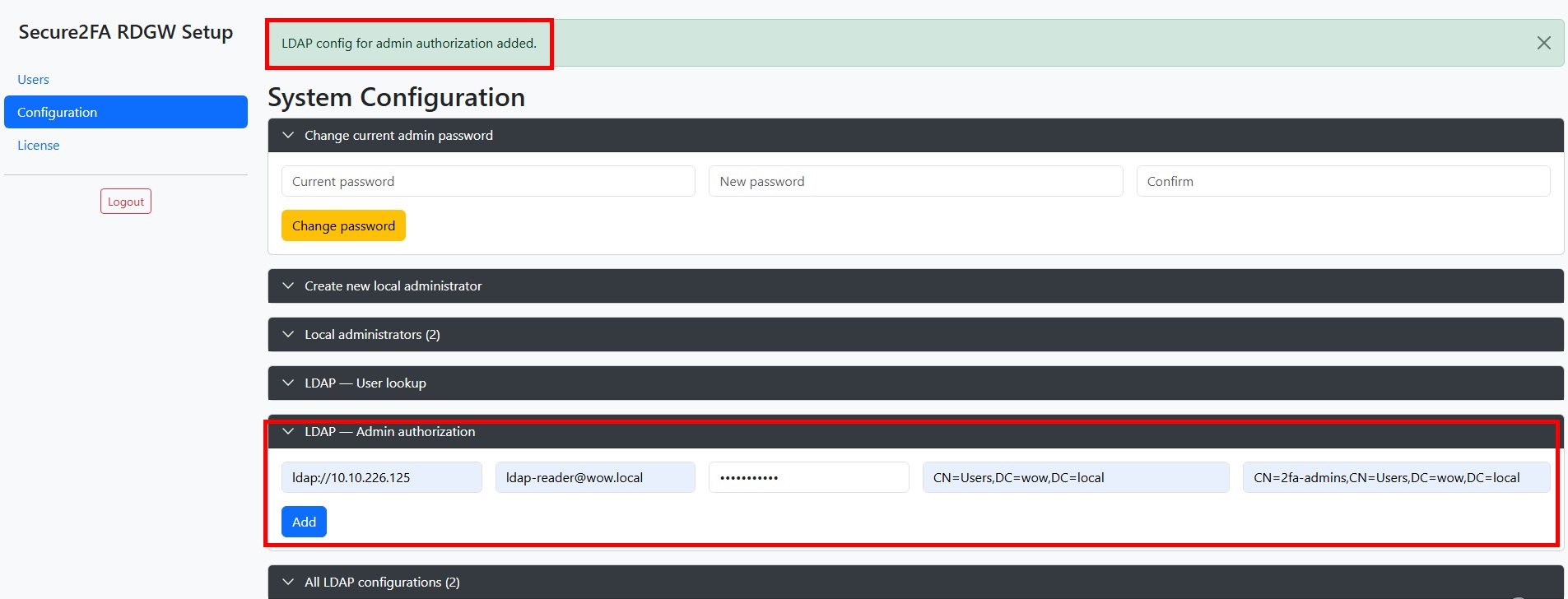
After successfully adding the configuration, you can Logout and log in to the admin panel with an Active Directory account, in the format username@yourdomain.local.