Configuring Microsoft Remote Desktop Gateway (RD Gateway) to Work with Secure2FA
To integrate RD Gateway with Secure2FA, you must configure the Network Policy Server (NPS) to forward authentication requests to an external RADIUS server (Secure2FA).
Follow these steps:
Open the NPS Console

Go to:
Control Panel → Administrative Tools → Network Policy Server (NPS).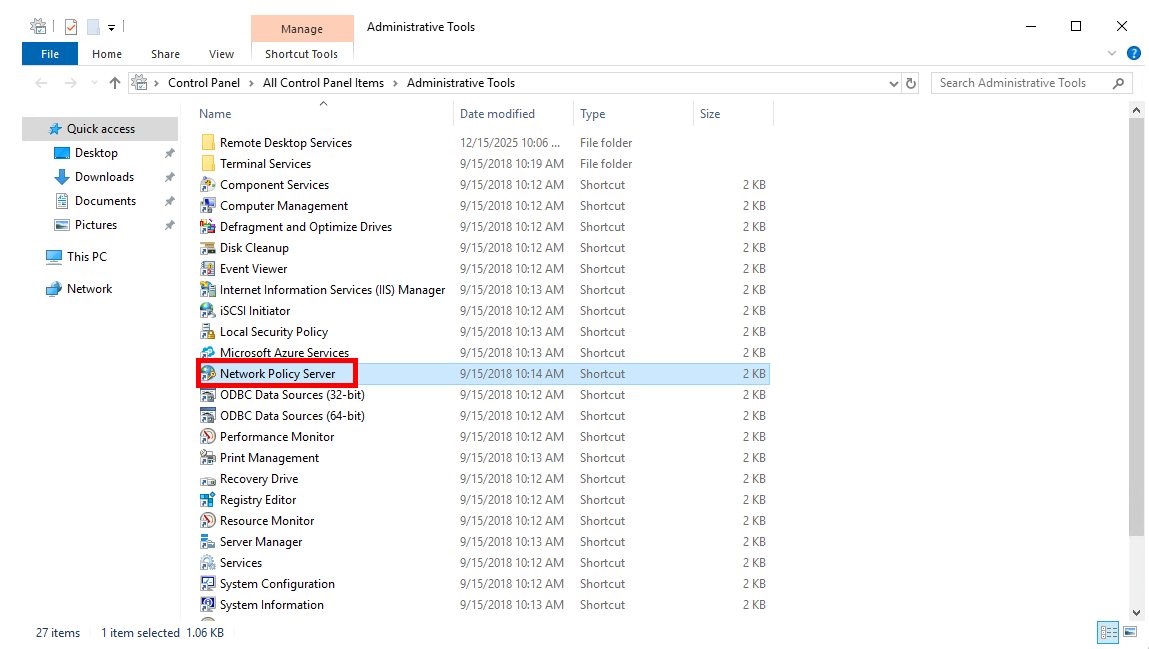
Create a Remote RADIUS Server Group
In the left pane, expand RADIUS Clients and Servers.
Right-click Remote RADIUS Server Groups and select New.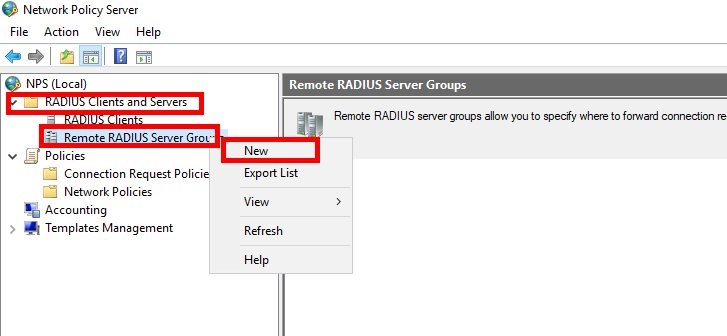
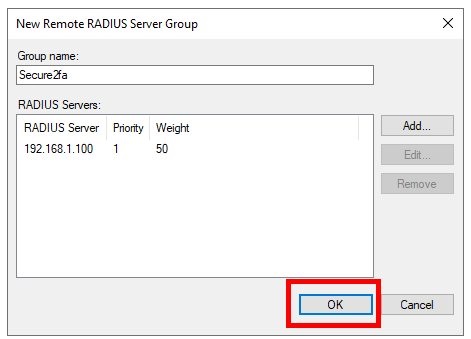
Enter a group name (e.g., Secure2FA) and click Add….

Add the Secure2FA Server to the Group.
In the Address field, enter the IP address of the server where Secure2FA is deployed.
Click Verify → Resolve to confirm the address is reachable.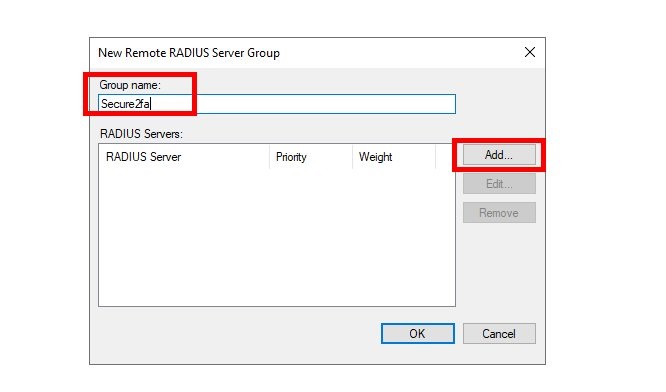

Switch to the Authentication/Accounting tab.

In the Shared secret field, enter a strong secret key.
Important: Save this key securely—it must match the one configured in Secure2FA.

Click OK, then OK again to finish creating the group.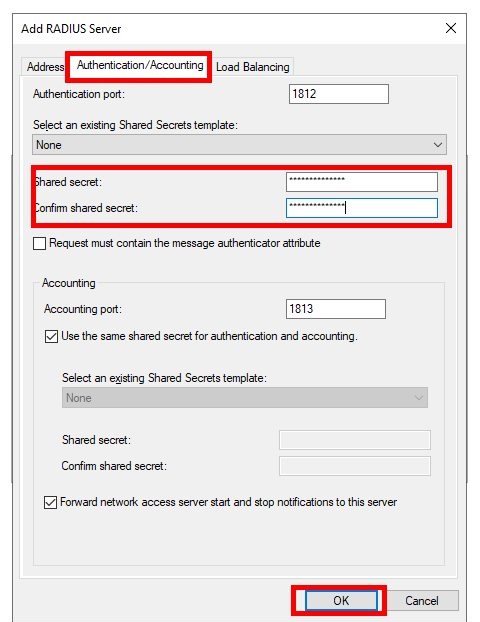
Configure the Connection Request Policy
Navigate to Policies → Connection Request Policies.
Locate the policy used for RD Gateway (by default, this is TS GATEWAY AUTHORIZATION POLICY).

Right-click the policy and select Properties.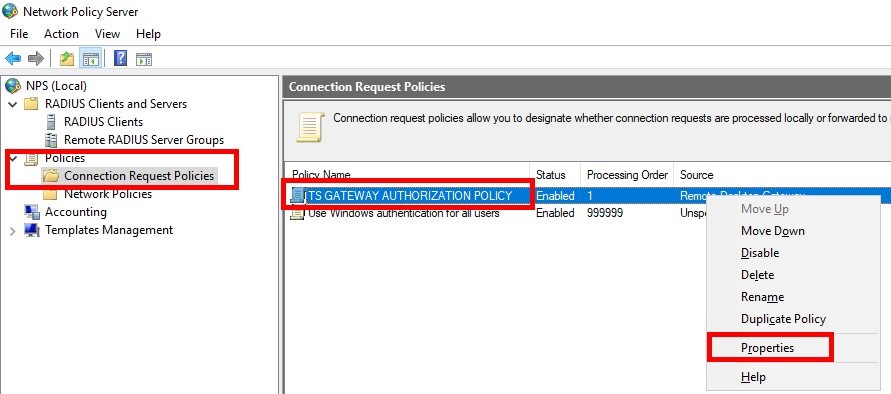
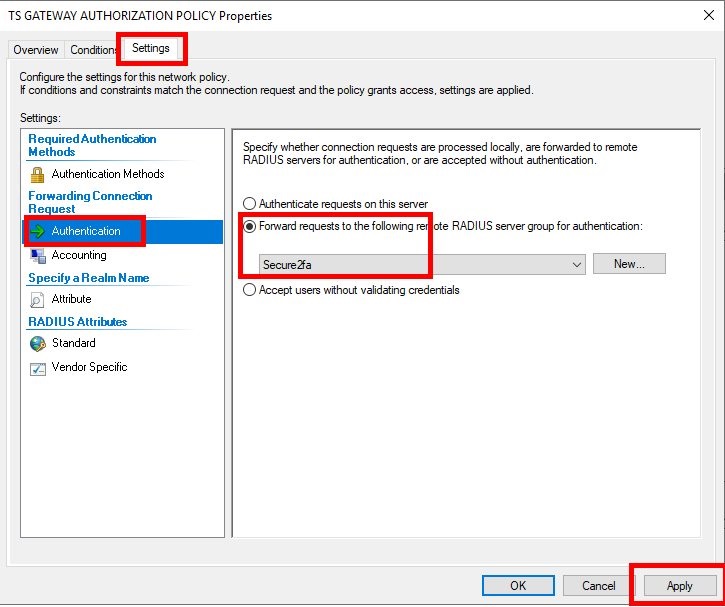
Go to the Settings tab, then click Authentication.

Select the option:
Forward requests to the following remote RADIUS server group for authentication, and choose the Secure2FA group you created.

Click Apply, then OK.